Enabling the new user interface
Enabling the new UI
To enable the new UI, checkout this quick video, which is also available on the CYPHER Learning product tours webpage.
You can also follow the steps below.
Super Administrators:
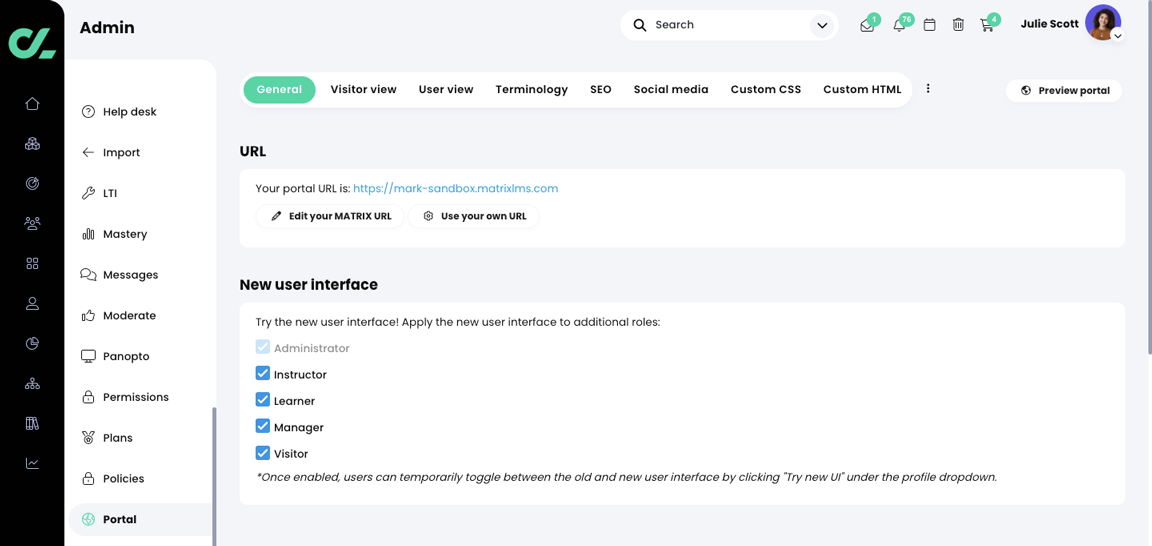
- From the main navigation menu, click Admin.
- Select Portal.
- Under the General tab, select Enable new UI for administrators.
- The screen will refresh with the new interface.
- The new interface will be applied to Administrators.
- Administrators can apply the new UI to other roles.
- Once the UI has been applied to their roles, users can activate the interface in their own portal instance.
Users:
- Click the drop-down arrow next to the profile icon.
- Click Try new UI.
- The screen will refresh with the new UI.
What's changed in the new UI
To view what has changed in the UI, checkout this video, which is also available on the CYPHER Learning product tours webpage.
Highlights of the new UI include:
- Updated primary navigation menu that is always available.
- Updated secondary navigation menus.
- Universal Admin access.
- New Help center location.
- Search bar that is always available.
Topic Participants
Jeff Johnson